

CMYK PDFs: A Complete Guide For Print Professionals
Create your CMYK PDFs easily with this guide. Learn about CMYK, its advantages, how to use it, and much more here!
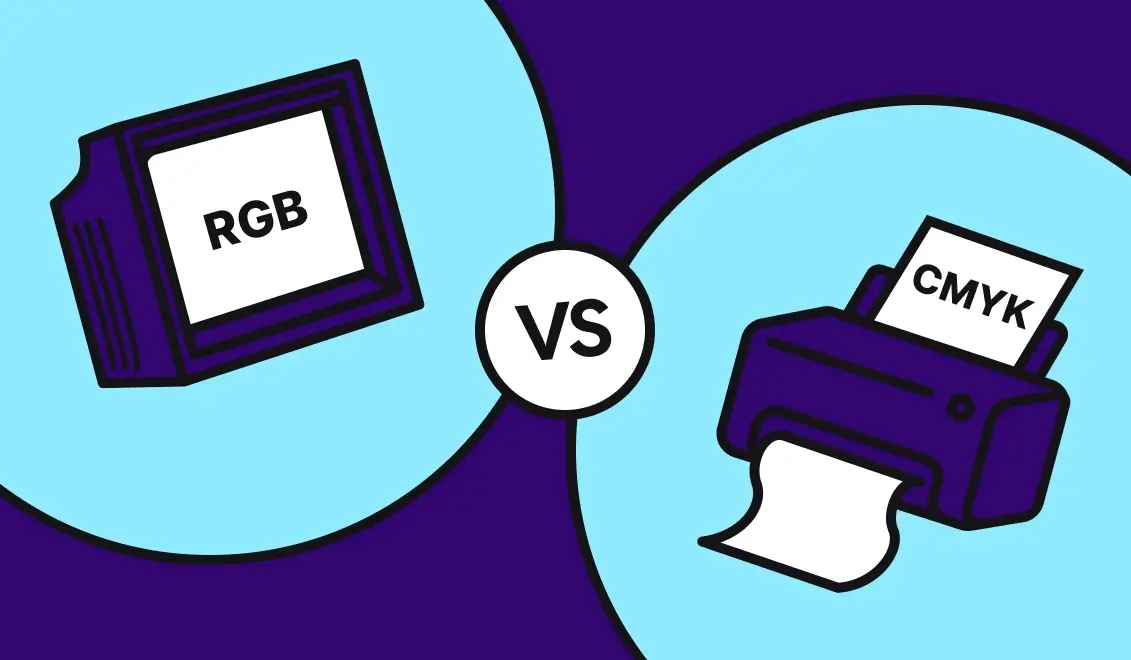
If you have ever tried to generate a printable document using a standard "HTML-to-PDF" library (like Puppeteer or wkhtmltopdf), you know the pain:
In this guide, we will implement a Print-Ready Pipeline using Abyssale’s dedicated printer_multipage design type. We aren't just taking a screenshot; we are rendering a vector PDF at 300 DPI.
In the Abyssale ecosystem, "Design Types" dictate the rendering engine rules. For generating documents, you need to choose the right one:
static: Optimized for Screens (RGB, 72 DPI). Fast, but not for print.printer: For single-page print assets. Perfect for a Poster or a Flyer where you might need different sizes (A4, A3) but only one "face".printer_multipage: The type we need for this tutorial. It allows you to define a sequence (Page 1, Page 2, Page 3...) inside a single template. This is mandatory for Event Tickets (Front/Back), Invoices, or Brochures.
Crucial Tech Note: You cannot simply add a?cmyk=trueparameter to a standard generation call. You must create your template as aprinter_multipageTemplate in the editor. This ensures the rendering engine respects print physics (CMYK profile, Bleed zones) from day one.
For a complex document like an Event Ticket, you need to define your structure in the Abyssale Editor.
({{qr_code}}, {{attendee_name}}) on the relevant pages.In the API payload, we will target these specific pages using the pages object, distinct from the standard elements object used for single images.
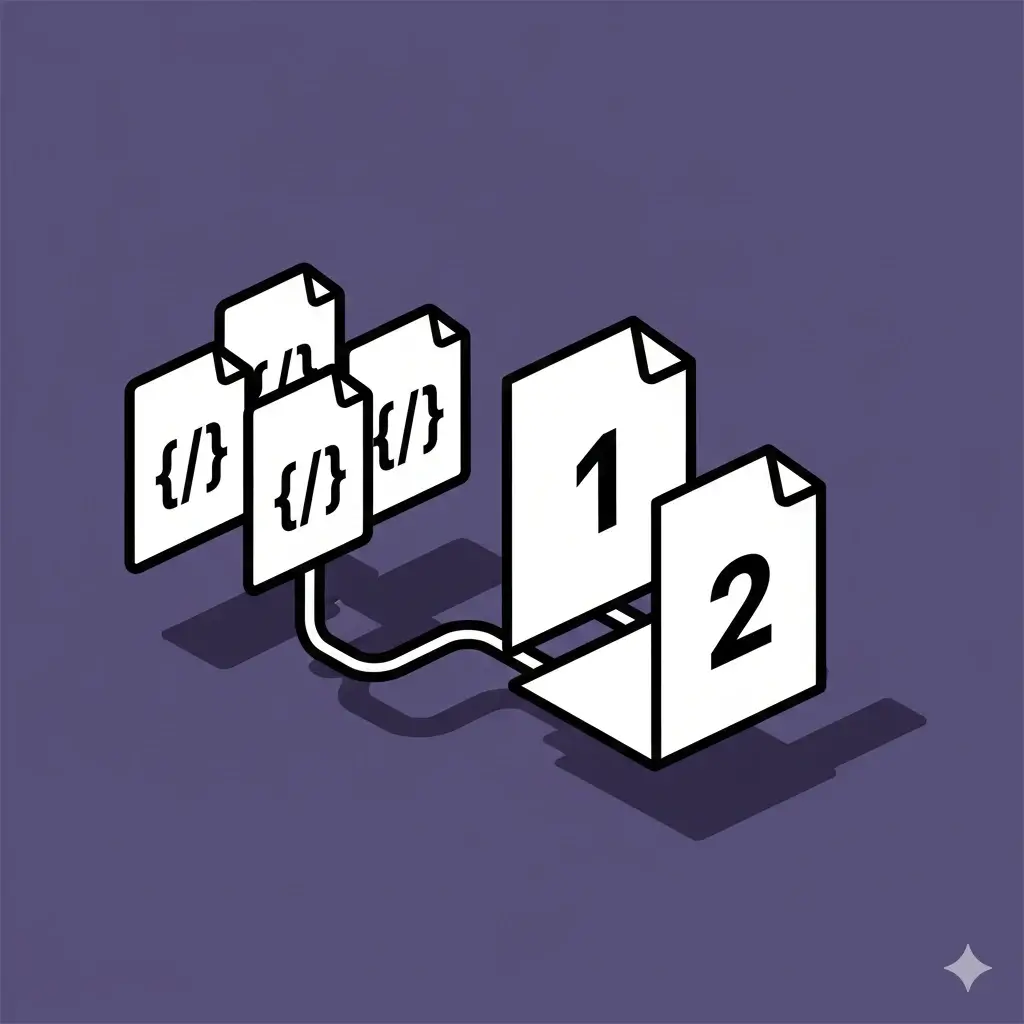
Generating high-fidelity PDFs takes computing power. You shouldn't block your user's request waiting for it. We will use the Asynchronous Generation Endpoint.
Endpoint: POST /async/banner-builder/{designId}/generate
const axios = require('axios');

const payload = {
  // We use the "pages" object specifically for printer_multipage templates
  pages: {
    "page_1": { // Keys correspond to your page names in the Editor
      "qr_code_layer": {
        "payload": "https://event.com/ticket/12345"
      },
      "attendee_name": {
        "payload": "Alexandre T."
      }
    },
    "page_2": {
      "terms_text": {
        "payload": "Valid for one entry only. Non-refundable."
      }
    }
  },
  // Essential: The Webhook to receive the final PDF URL
  callback_url: "https://api.myapp.com/webhooks/pdf-ready"
};

async function generateTicket() {
  const response = await axios.post(
    'https://api.abyssale.com/async/banner-builder/YOUR_DESIGN_ID/generate',
    payload,
    { headers: { 'x-api-key': process.env.ABYSSALE_KEY } }
  );

  // Returns a generation_request_id instantly
  console.log("Job queued:", response.data.generation_request_id);
}
Since we are in an async flow, Abyssale will POST the result to your callback_url once the rendering is complete.
The JSON payload you receive will look like this:
{
  "generation_request_id": "06399fcd-0c21-47da-bd9b-1e653e0453e8",
  "banners": [
    {
      "id": "64238d01-d402-474b-8c2d-fbc957e9d290",
      "file": {
        "url": "https://cdn.abyssale.com/pdfs/ticket_123.pdf", // Your Multi-Page Asset
        "type": "pdf",
        "mime_type": "application/pdf",
        "size": 102400
      },
      "format": {
        "id": "a4-landscape",
        "width": 3508,
        "height": 2480
      },
      "design": {
        "id": "e0d292f2-ec21-11e9-a539-3c408bf94155",
        "name": "Event Ticket 2025"
      }
    }
  ]
}
Pro Tip: This PDF is hosted on our CDN. You can redirect your user directly to this URL or download it to your own S3 bucket for long-term storage.
Why choose Abyssale's printer_multipage over a standard image generator?
pdf-lib). The API delivers a single, stitched multi-page PDF file ready for the printer.
Stop hacking screen-based tools for paper-based problems. By using the printer_multipage design type and the Async API, you build a generation pipeline that satisfies both your developers (easy JSON) and your operations team (perfect prints).
Ready to print?
Explore our guides and tutorials to unlock the full potential of Abyssale's spreadsheet feature for scaled content production.
.webp)

%2520(14).webp)

